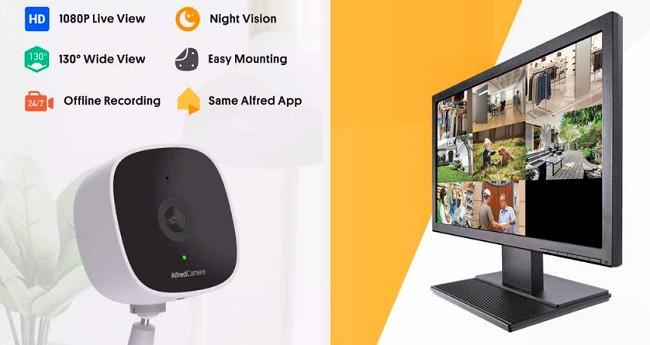
As smart home technology evolves, protecting your home no longer requires expensive surveillance systems. The Alfred Home Security App offers a simple, cost-effective way to transform your old or current iPhone and iPad into powerful security cameras. Designed for those seeking reliable home security, Alfred is a free app that delivers real-time monitoring, motion detection alerts, and two-way audio, making it an ideal solution for safeguarding your home or office.
In this guide, we’ll explore how to download, set up, and use the Alfred Home Security App on your iPhone and iPad. Whether you’re new to home security or want to upgrade your system, this guide will help you make the most of Alfred's features.
Why Choose Alfred Home Security App for iOS
Alfred is a top choice for many because of its simplicity and versatility. By using devices you already own, it provides robust security without the need for costly hardware. Here are some key benefits:
Live Streaming: Watch real-time video footage from your connected devices.
Motion Detection: Receive instant alerts when motion is detected in monitored areas.
Two-Way Audio: Communicate with anyone near the camera device through your iPhone or iPad.
Cloud Storage: Access recorded motion-triggered clips securely stored in the cloud.
Multi-Device Compatibility: Use multiple iPhones, iPads, and even Android devices in the same security network.
Benefits of Using Alfred on iPhone & iPad:
Free and Easy to Use: The basic version is free, with a premium option for added features.
Repurpose Old Devices: Turn your older iPhone or iPad into a fully functional security camera.
Remote Monitoring: Keep an eye on your home from anywhere using your current device.
How to Install Alfred Home Security App for iPhone & iPad?
Step 1: Download the Alfred App from the App Store
Open the App Store on your iPhone or iPad.
Tap the Search icon at the bottom.
Type Alfred Home Security Camera into the search bar.
Locate the app and tap Get or the download icon.
Authenticate with Face ID, Touch ID, or your Apple ID password to begin the installation.
Step 2: Sign In with Your Google Account
Once installed, open the Alfred app.
Tap Sign in with Google. Alfred uses your Google account to sync devices.
Choose an existing Google account or add a new one.
Allow the app to access the necessary permissions, including the camera, microphone, and notifications.
Setting Up Alfred Camera on Your iPhone & iPad
Step 1: Designate Devices as Camera or Viewer
Alfred requires two devices to work—a Camera device for recording and a Viewer device for monitoring.
Setting Up the Camera Device:
Open Alfred on the iPhone or iPad you want to use as the camera.
Select Camera mode.
Position the device in the area you want to monitor. Ensure it has a stable power source to avoid interruptions.
Setting Up the Viewer Device:
Open Alfred on the iPhone or iPad you’ll use to view the feed.
Select Viewer mode.
Ensure both devices are signed in with the same Google account to sync them seamlessly.
Using Alfred Home Security App on iPhone & iPad
1. Viewing Live Feeds
Once your devices are connected:
Open Alfred on the Viewer device.
Tap the Camera device you want to monitor from the list.
The live feed will appear with video and audio, allowing you to observe real-time activity.
2. Motion Detection and Alerts
Alfred’s motion detection feature alerts you when movement is detected.
Go to the Settings menu on the Camera device.
Enable Motion Detection by toggling the switch.
Adjust the sensitivity to low, medium, or high depending on your needs.
Ensure Push Notifications are enabled on the Viewer device to receive instant alerts.
3. Two-Way Communication
You can use Alfred’s two-way audio feature to speak to people near the Camera device.
Tap the Microphone icon on the live feed screen.
Speak through your Viewer device, and your voice will be transmitted to the Camera device.
Listen to responses through the app on your Viewer device.
4. Accessing Recorded Clips
Motion-triggered events are stored in Alfred’s cloud for easy access.
Tap the Library icon in the Viewer app.
Browse clips organized by date and time.
Download, share, or delete clips as needed.
Advanced Features of Alfred Camera
1. Scheduling Monitoring Hours
Set up specific times for motion detection to avoid unnecessary alerts.
Go to Settings > Schedule Monitoring on the Camera device.
Choose the desired time frame for Alfred to activate.
Save your settings, and Alfred will automatically monitor during the selected hours.
2. HD Video (Premium Feature)
Upgrade to Alfred Premium for high-definition video quality.
Tap Upgrade in the Alfred app menu.
Follow the prompts to subscribe and access enhanced features, including HD video and longer cloud storage.
3. Low-Light Filter
Alfred includes a low-light filter to enhance visibility in dim environments.
Enable the Low-Light Filter from the Camera device’s settings.
Position the Camera device in areas with minimal lighting for better clarity.
Troubleshooting Common Issues
1. No Live Feed Displayed
Ensure both devices are connected to the internet.
Restart the Alfred app on both devices.
Check if both devices are logged into the same Google account.
2. Motion Detection Not Working
Make sure Motion Detection is enabled on the Camera device.
Adjust the sensitivity setting in the app.
Verify the Camera device is positioned correctly to capture movement.
3. Audio Issues
Confirm that Alfred has access to the microphone on both devices.
Ensure the volume is turned up on both the Camera and Viewer devices.
Restart the app if the issue persists.
Conclusion
The Alfred Camera Home Security App for iPhone and iPad is a powerful tool that turns your Apple devices into smart security cameras. With features like live streaming, motion detection, two-way audio, and cloud storage, it provides an affordable and user-friendly solution for home security. By following this guide, you can easily set up and use Alfred to monitor your home or office, ensuring peace of mind wherever you are.