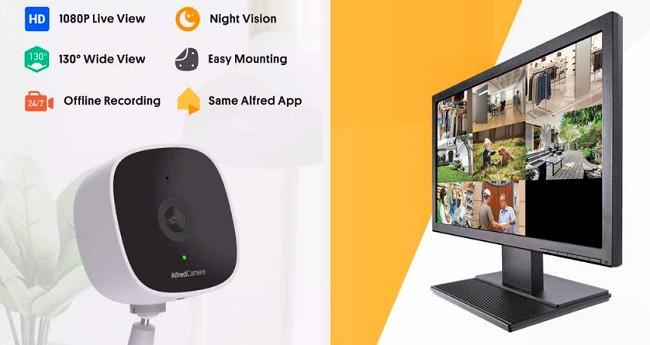
In the age of smart technology, home security no longer requires expensive equipment or complex installations. The Alfred Security Camera App offers a simple, cost-effective way to turn your Android devices into a full-fledged surveillance system. Whether you’re monitoring your home, checking on your pets, or ensuring your child’s safety, Alfred provides a reliable solution at your fingertips.
In this comprehensive guide, we’ll walk you through everything you need to know about installing and using Alfred on Android devices. From setup to troubleshooting, you’ll have a step-by-step approach to maximizing this app's potential.
What is the Alfred Security Camera App?
Alfred is a free-to-use security app that transforms old smartphones, tablets, or even new Android devices into surveillance cameras. It offers essential features like:
Live Video Streaming
Motion Detection and Alerts
Two-Way Audio Communication
Cloud Storage for Recorded Clips
Night Vision Compatibility
Designed for ease of use, Alfred allows you to set up a robust home security system without the need for expensive equipment or professional installation.
Why Use Alfred on Android Devices?
There are several compelling reasons to use Alfred on Android devices:
Cost-Effective: Reuse old Android phones instead of buying new security cameras.
Easy Setup: No technical skills are required to install and configure the app.
Remote Monitoring: Access live feeds from anywhere in the world using any internet-connected device.
Multi-Device Compatibility: Use multiple Android devices to create a comprehensive surveillance system.
Customizable Settings: Adjust motion detection sensitivity, video quality, and alert preferences to suit your needs.
How to Install Alfred Security Camera App for Android Devices?
Step 1: Download the App from the Google Play Store
Open the Google Play Store on the Android device you want to use.
In the search bar, type "Alfred Security Camera".
Select the app developed by Alfred Systems Inc. and click Install.
Wait for the installation to complete, then click Open.
Step 2: Create or Log in with a Google Account
Alfred requires a Google account to sync all devices in the surveillance network. Follow these steps:
Open the Alfred app and tap Sign in with Google.
Choose the Google account you want to use or add a new one.
Grant the necessary permissions, such as camera and microphone access.
Step 3: Set Up the Android Devices as Camera and Viewer
Device 1 (Camera Mode):
Select Camera mode on the device you want to act as the security camera.
Position the device in the desired location, ensuring it has a stable power source.
Device 2 (Viewer Mode):
Install Alfred on the second Android device (or any internet-connected device).
Select Viewer mode to monitor the live feed from the Camera device.
Ensure both devices are signed in with the same Google account.
How to Use Alfred Camera App on Android Devices?
1. Monitoring Live Feed
Once both devices are set up, you can view the live feed from your Camera device on the Viewer device:
Open Alfred on the Viewer device.
Select the connected Camera device from the home screen.
Watch the live stream in real-time.
2. Configuring Motion Detection and Alerts
One of Alfred’s standout features is motion detection, which automatically records clips when movement is detected:
Tap the Settings icon on the Camera device.
Toggle Motion Detection on.
Adjust the Sensitivity to customize how easily motion is detected (e.g., low for minimal movement, high for any slight motion).
On the Viewer device, enable Push Notifications to receive alerts when motion is detected.
3. Using Two-Way Audio for Communication
Alfred allows two-way communication, making it ideal for monitoring pets or talking to family members:
On the live feed screen, tap the Microphone icon.
Speak into the Viewer device to communicate through the Camera device.
Listen to responses via the Camera device’s microphone.
4. Accessing Recorded Clips and Cloud Storage
Alfred stores motion-triggered video clips in the cloud:
Tap the Library tab on the Viewer device to access recorded clips.
Download or delete clips as needed.
Upgrade to Alfred Premium for extended storage, HD video, and ad-free usage.
Advanced Features and Customization Options
1. Night Vision Mode
While Alfred doesn’t have built-in infrared night vision, you can enhance visibility in low-light conditions:
Place a small light near the Camera device to improve clarity.
Enable Low-Light Filter in the app settings to enhance the image quality.
2. Schedule Monitoring Times
To avoid constant notifications, schedule specific times for motion detection:
Go to the Settings menu.
Tap Scheduling and set the desired monitoring hours.
Alfred will activate motion detection only during these scheduled times.
3. Power-Saving Tips for Camera Devices
To ensure continuous operation without battery depletion:
Connect the Camera device to a power source.
Enable Power-Saving Mode in Alfred’s settings to reduce battery usage.
Turn off unnecessary features like vibration and brightness on the Camera device.
4. Adding Multiple Cameras
For more comprehensive coverage:
Install Alfred on additional Android devices.
Select Camera mode and sign in with the same Google account.
All devices will appear on the Viewer’s home screen for easy access.
Troubleshooting Common Issues
1. No Live Feed Display
Ensure both devices are connected to the internet.
Restart the Alfred app and check the Wi-Fi or mobile data connection.
2. Motion Detection Not Triggering
Increase the sensitivity in the motion detection settings.
Make sure the Camera device is placed in an area with potential movement.
3. App Crashing or Freezing
Clear the app cache by going to Settings > Apps > Alfred > Storage > Clear Cache.
Ensure both devices are running the latest version of Alfred.
4. Audio Issues
Check the microphone and speaker permissions for Alfred in Settings > Apps > Alfred > Permissions.
Ensure the Camera device’s microphone is not muted.
Benefits of Using Alfred Camera on Android Devices
Recycling Old Devices: Put your old Android phones to good use as security cameras.
Global Access: Monitor your home or office from anywhere in the world.
Flexible Monitoring Options: Customize settings to suit your security needs.
Affordable Security: Enjoy a robust security solution without the need for expensive equipment.
Conclusion
The Alfred Security Camera App is a game-changer in the world of home surveillance. With its ease of use, powerful features, and compatibility with Android devices, it offers an unparalleled level of convenience and security. Whether you’re a homeowner, pet owner, or someone looking to enhance personal safety, Alfred provides a reliable and cost-effective solution.
By following this guide, you can seamlessly install, configure, and use Alfred on your Android devices. Enjoy the peace of mind that comes with knowing your home and loved ones are always within view.