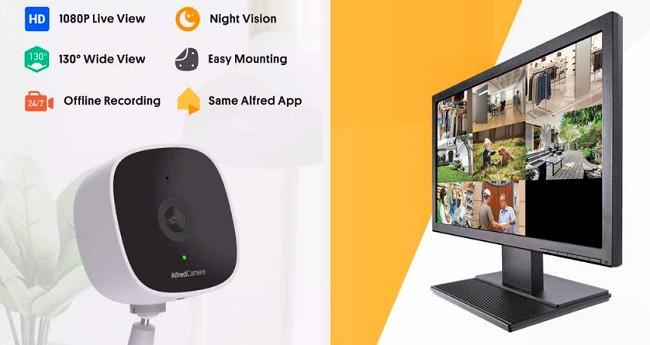
In today’s world, ensuring the safety of your home or office is a top priority. The Alfred Camera CCTV App offers a smart, affordable way to create a reliable security system using your old smartphones, tablets, or other devices. With Alfred, you can turn these devices into fully functional security cameras equipped with live streaming, motion detection, two-way audio, and cloud storage.
In this guide, we’ll explain how to set up and use the Alfred Camera CCTV App, from installation to advanced features. Whether you’re looking to keep an eye on your property, pets, or loved ones, Alfred makes it simple and effective.
Why Use Alfred Camera CCTV App?
Alfred stands out because it eliminates the need for expensive surveillance equipment. By repurposing devices you already own, it delivers professional-level security features, including:
Live Video Monitoring: Access real-time video feeds from your camera devices.
Motion Detection Alerts: Get instant notifications when movement is detected.
Two-Way Audio: Speak and listen through your security camera in real-time.
Night Vision Mode: Enhance visibility in low-light conditions.
Cloud Storage: Save motion-triggered clips securely in the cloud.
Key Benefits:
Cost-Efficient: Reuse old devices, reducing the need for new equipment.
Remote Access: Monitor your home or office from anywhere with an internet connection.
User-Friendly Interface: No technical expertise required for setup and usage.
How to Set Up Alfred Camera CCTV App?
Step 1: Download and Install the App
The first step is to install Alfred on the devices you want to use.
For Android Devices:
Open the Google Play Store.
Search for Alfred Camera CCTV.
Tap Install and wait for the app to download.
For iOS Devices:
Open the App Store.
Search for Alfred Camera Security App.
Tap Get to download and install the app.
Step 2: Sign In with a Google Account
Alfred requires a Google account to sync devices.
Open the Alfred app on your device.
Tap Sign in with Google.
Choose an existing Google account or add a new one.
Grant necessary permissions for camera, microphone, and notifications.
Step 3: Set Up the Camera and Viewer Devices
Alfred requires two devices: one as the Camera (for surveillance) and the other as the Viewer (for monitoring).
Camera Device Setup:
Open Alfred on the device you want to use as a security camera.
Choose Camera mode.
Position the device where you want surveillance—ensure it has a stable power source for continuous operation.
Viewer Device Setup:
Open Alfred on the device you’ll use to monitor (Viewer device).
Choose Viewer mode.
Make sure both devices are logged into the same Google account.
Using Alfred Camera CCTV App
1. Monitoring Live Video Feeds
Once the Camera and Viewer devices are connected:
Open Alfred on the Viewer device.
Tap the Camera device you want to view from the list.
Watch the live feed in real-time, with both video and audio.
2. Enabling Motion Detection and Alerts
Alfred's motion detection feature automatically records video when movement is detected.
Tap the Settings icon on the Camera device.
Toggle Motion Detection to On.
Adjust the sensitivity level based on your environment (Low, Medium, or High).
Enable Push Notifications on the Viewer device to receive instant alerts.
3. Two-Way Audio Communication
Alfred allows you to communicate with people near the Camera device:
Tap the Microphone icon on the live feed screen.
Speak through the Viewer device's microphone.
Your voice will transmit through the Camera device’s speaker.
4. Accessing Recorded Clips
All motion-triggered recordings are stored securely in the cloud.
Tap the Library tab in the Viewer app.
Browse through recorded clips organized by date and time.
Download or delete clips as needed.
Advanced Features of Alfred Camera CCTV App
1. Night Vision Mode
Alfred enhances low-light visibility with its Night Vision feature:
Enable Low-Light Filter in the Camera device’s settings.
Use external lighting if necessary for better clarity.
2. Scheduling Surveillance
To avoid unnecessary alerts, set a schedule for when the camera should monitor activity:
Go to Settings > Scheduling.
Select specific times and days to activate motion detection.
Alfred will automatically start and stop monitoring based on your schedule.
3. Multiple Camera Setup
For comprehensive surveillance, you can connect multiple Camera devices:
Repeat the setup process on additional devices, selecting Camera mode.
All connected cameras will appear on the Viewer device’s home screen.
Tap any camera to view its live feed.
Troubleshooting Common Issues
1. Live Feed Not Displaying
Ensure both devices are connected to the internet.
Restart the Alfred app on both devices.
Check that both devices are logged into the same Google account.
2. Motion Detection Not Working
Verify that Motion Detection is enabled on the Camera device.
Increase the sensitivity level in the settings.
Ensure the Camera device is positioned to capture movement effectively.
3. Audio Issues
Make sure the app has permission to access the microphone on both devices.
Check the volume settings on both the Camera and Viewer devices.
Restart the app if audio issues persist.
FAQs About Alfred Camera CCTV App
1. Is Alfred Camera CCTV App free?
Yes, Alfred offers a free version with essential features. However, you can upgrade to Alfred Premium for enhanced features like HD video, longer cloud storage, and ad-free usage.
2. Can I use Alfred without an internet connection?
No, Alfred requires an internet connection to stream video and send alerts. A stable Wi-Fi connection is recommended for the best performance.
3. How many devices can I connect to Alfred?
Alfred allows multiple devices to be connected under one account. You can monitor several Camera devices from a single Viewer device.
4. Does Alfred support night vision?
While Alfred doesn’t have built-in infrared night vision, it offers a Low-Light Filter to improve visibility in dark environments. Adding external lighting can also enhance performance.
5. Is Alfred secure?
Yes, Alfred uses secure encryption protocols to protect your data. Only you and those with access to your Google account can view the camera feeds.
6. Can I use Alfred on a PC?
Yes, you can use Alfred on a PC through its Web Viewer or by using an Android emulator like BlueStacks.
7. How much cloud storage does Alfred provide?
The free version offers limited cloud storage for motion-detected clips. Premium users enjoy extended storage options and HD video quality.
Conclusion
The Alfred Camera CCTV App provides an excellent solution for anyone looking to enhance home or office security without the need for expensive equipment. With features like live streaming, motion detection, two-way audio, and cloud storage, Alfred transforms your old devices into powerful surveillance tools. Follow the steps outlined in this guide to set up and use Alfred efficiently, ensuring peace of mind and continuous monitoring wherever you are.